
Staff turn rotation & PIN check-in
Requirements
- Available on: Premium and above
- Device access: Web & mobile browser
- Permission: Owner or Manager (to configure); Any staff with a Turn PIN (to check in)
SalonHub360's Staff Turn Rotation keeps walk-in and unrequested appointment assignments fair, transparent, and automatic — with 4–6 digit Turn PIN check-ins, smart service-aware matching, and a 500-row audit log any technician can inspect.
1. Enable Staff Turns for your location
-
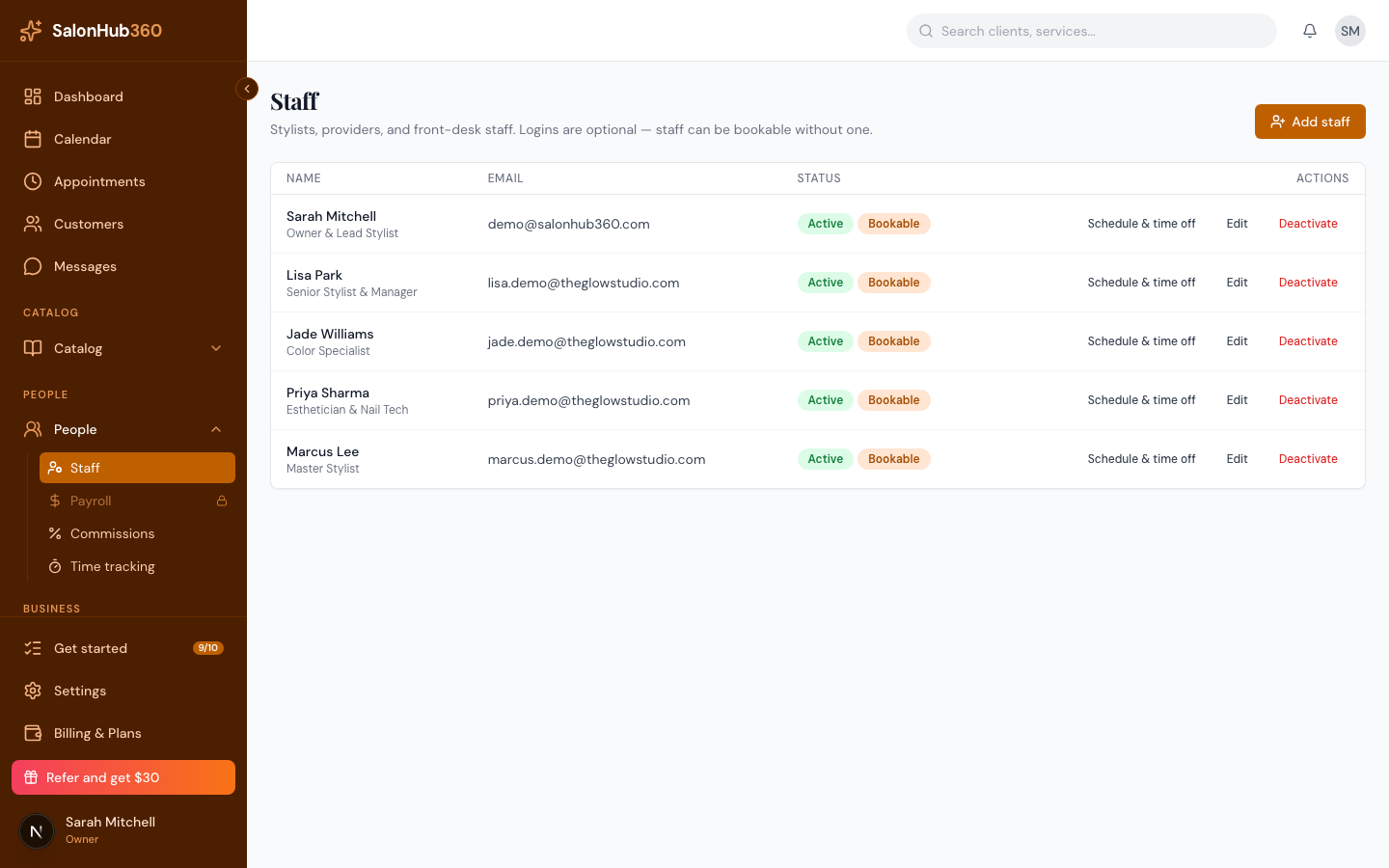
In the left menu, open Staff → Turns (or Settings → Turns).
-
Select your location at the top if you have more than one, then click Turn Settings and switch on Enable Staff Turns for this location.
-
Choose how manual and requested bookings affect a technician's turn count:
- Count client-requested appointments toward rotation turns — decide whether
Requestedbookings advance the technician's main rotation turn or track separately as Bonus / Requested turns. - Count manual front-desk assignments toward rotation turns — decide whether
Manualassignments advance the technician's main rotation turn. - Buffer before next appointment (minutes) — prevent auto-rotation from assigning a walk-in if a technician has a booked appointment starting within your buffer window.
- Count client-requested appointments toward rotation turns — decide whether
-
Click Save settings.
2. Set each technician's Turn PIN & Manager Unlock PIN
- Open Staff, select a team member, and click Edit.
- In the Turn & Time Clock PIN section, enter a unique 4–6 digit Turn PIN for the technician and click Save.
- For Owners and Managers, you can also set a Manager Unlock PIN so managers can approve queue adjustments or unlock the front-desk check-in drawer without switching browser accounts.
3. Daily check-in workflow (Available, On Break, Checked Out)
Technicians join the live rotation queue in the order they check in each morning:
-
From any dashboard screen, click Staff check-in in the top header (or open the front-desk check-in tablet).
-
Enter your 4–6 digit Turn PIN:
- Check In (
Available) — places you in today's active turn queue and clocks you in if your time clock is linked. - Start Break (
On Break) — pauses auto-assignment while keeping your spot in line. - End Break (
Available) — returns you to active status at your preserved queue position. - Check Out (
Checked Out) — removes you from today's active queue at the end of your shift.
- Check In (
4. How Smart Auto-Rotation picks the next technician
When a walk-in checks in or an appointment is booked with Any Available Provider, SalonHub360 scans the turn queue from the top (lowest turn count first, then earliest check-in/last-turn timestamp) and checks four rules:
- Checked in &
Availableat the location. - Performs the requested service (assigned on the staff member's Services tab).
- Not currently in service on another active appointment.
- Has enough time before their next scheduled appointment (including your configured buffer).
Why a technician is skipped (without losing their spot)
If the person at the top of the queue can't take the client right now, SalonHub360 skips them for that assignment only — they keep their exact spot at the top of the line for the next matching client. Every skip records a transparent reason badge:
| Skip reason badge | Why it happened |
|---|---|
On break | Technician is currently on an active break. |
Doesn't perform service | Technician isn't assigned to one or more services on the visit. |
Busy | Technician is already in progress with another client. |
Too close to next booking | Starting this service would overlap their next appointment or buffer window. |
Independent renter | Booth renter is in Independent mode and has not opted into today's salon rotation. |
When a turn is consumed vs. returned
- Turn consumed: A rotation turn is officially counted when the appointment status moves to In Progress (service started).
- Turn returned: If an appointment is Cancelled or marked No-Show before moving to In Progress, the technician's turn is not consumed and their place in line is restored automatically.
5. Inspect the Fairness View & 500-Row Assignment Audit Log
If a technician ever asks "Why did Alex get that walk-in before me?", you can answer in seconds right from the dashboard:
-
Open Staff → Turns and click the Fairness & Audit Log tab.
-
The Fairness View compares every technician's Rotation Turns, Requested / Bonus Turns, Manual Assignments, and Total Service Value for the day.
-
The 500-Row Assignment Audit Log shows the exact queue snapshot at the moment each appointment was assigned — who was selected (
Auto-Rotation,Requested, orManual) and the exact skip reason for anyone higher in the queue.
Related articles