
Adding or removing plan add-ons
Requirements
- Available on: Starter and above
- Device access: Web & mobile browser
- Permission: Owner
Add-ons let you unlock specific capabilities — such as a custom website domain, the full Design Studio website builder, or Booth Renter seats — without moving your entire salon up to a higher plan tier.
Available add-ons at a glance
| Add-on | Price | Eligible plans | Included automatically on |
|---|---|---|---|
Custom domain (custom_domain) | $5/mo (or $36/yr billed yearly) | Starter | Growth, Premium & Enterprise |
Advanced website builder — Design Studio (advanced_website) | $6.99/mo (or $59.88/yr billed yearly) | Starter | Growth, Premium & Enterprise |
Booth renter seat (booth_renter) | $9.99 per renter/mo | Starter, Growth & Premium | Enterprise (included at no extra per-seat fee) |
Note: The Free plan cannot purchase add-ons. Upgrade to Starter ($19.99/mo, or $17.99/mo billed yearly) or above first — see Change or upgrade your plan.
How to add an add-on
-
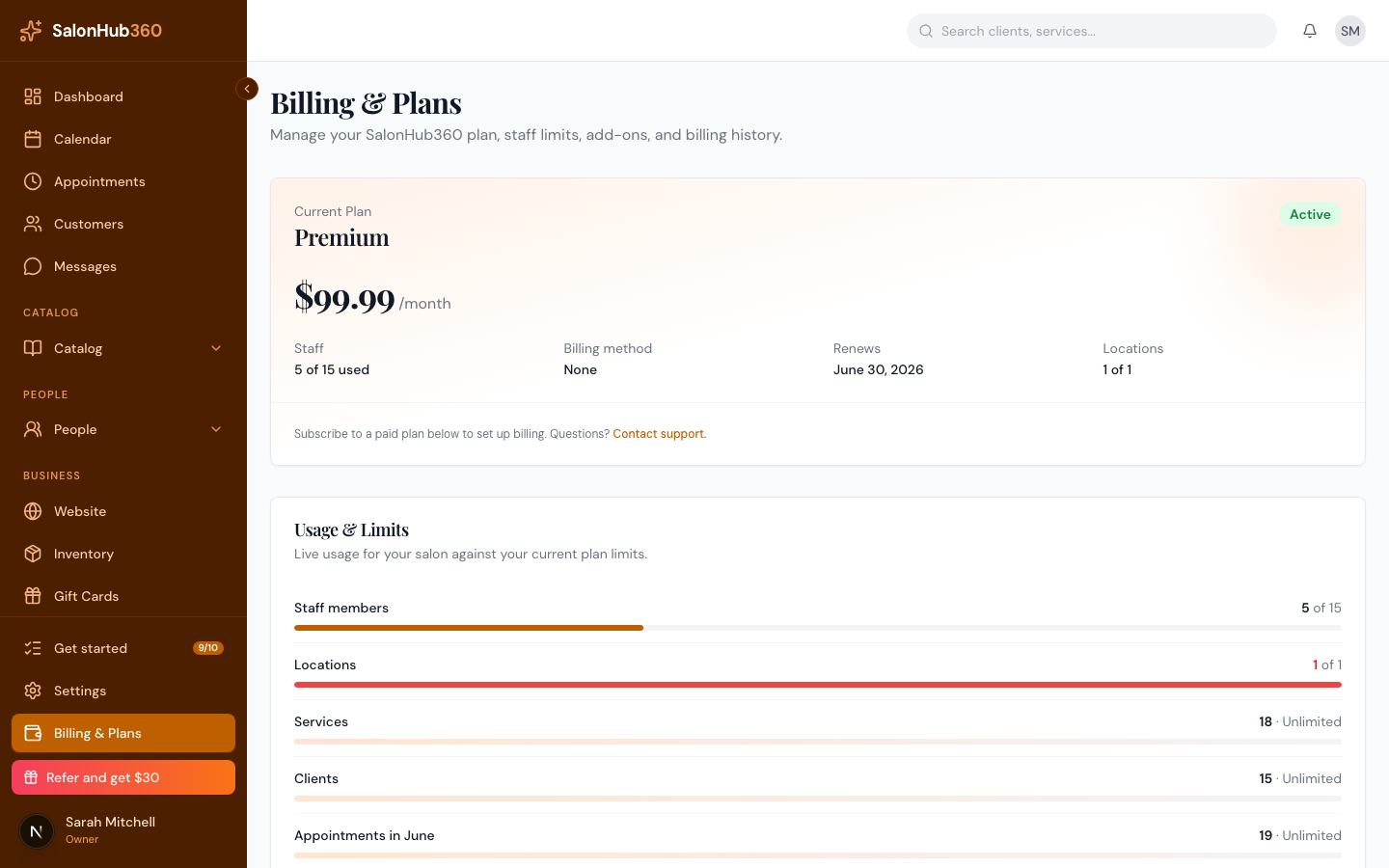
In the left menu, open Billing & Plans and scroll to the Add-ons section.
-
Find the add-on you want:
- For Custom domain or Advanced website builder, choose Monthly or Yearly billing and click Add to plan.
- For Booth renters, click Add seat (or manage seats Directly when setting a staff member to Booth Renter under Staff). Each active booth renter seat is billed at $9.99/month.
-
Review the prorated charge in the confirmation dialog and click Confirm. If you already have a card on file for your subscription, the add-on activates immediately.
What happens when you upgrade your plan
- If you upgrade from Starter to Growth (or higher), your Custom domain and Advanced website builder add-ons are now included in your plan — SalonHub360 automatically cancels the standalone add-on subscription so you are never double-billed.
- If your salon moves to Enterprise, Booth renter seats are included in your plan at no extra per-seat charge.
How to remove an add-on
- Open Billing & Plans and scroll to Add-ons.
- On the active add-on row, click Remove (or reduce your active booth renter seats under Staff first if removing Booth renters).
- Click Confirm removal. The add-on remains active through the end of its current billing period and won't renew.
Tip: Want to learn how Independent vs. With-Salon booth renters work once you've added a seat? See Independent vs. With-Salon booth renters.
Related articles